How do you download a Twitch clip?
Paste a public clip link and save the best available MP4, up to 1080p when Twitch provides it.
Your clip is ready.
Want a vertical edit with captions? Upload this clip to MakeShort and get it ready to post.
Turn this clip verticalHow to download a Twitch clip
All you need is a public clip link. No software to install.
- 1
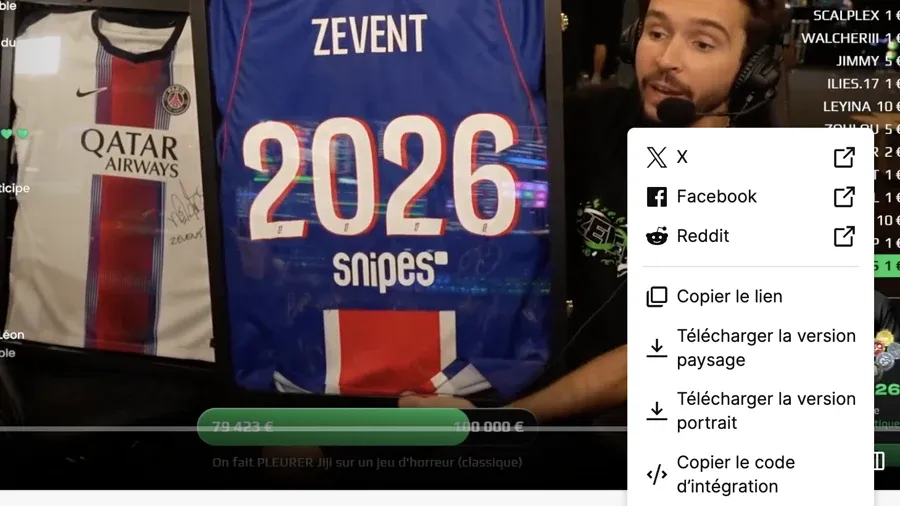
Open the Twitch clip
Use Share on the clip player and copy the full link. Both clips.twitch.tv and twitch.tv links containing /clip/ work.
- 2
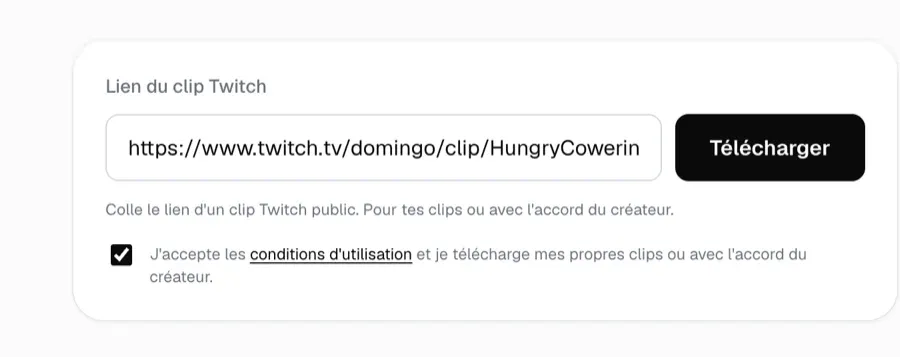
Paste the full link
Paste the URL above. The tool finds the available video versions and picks the highest quality automatically.
- 3
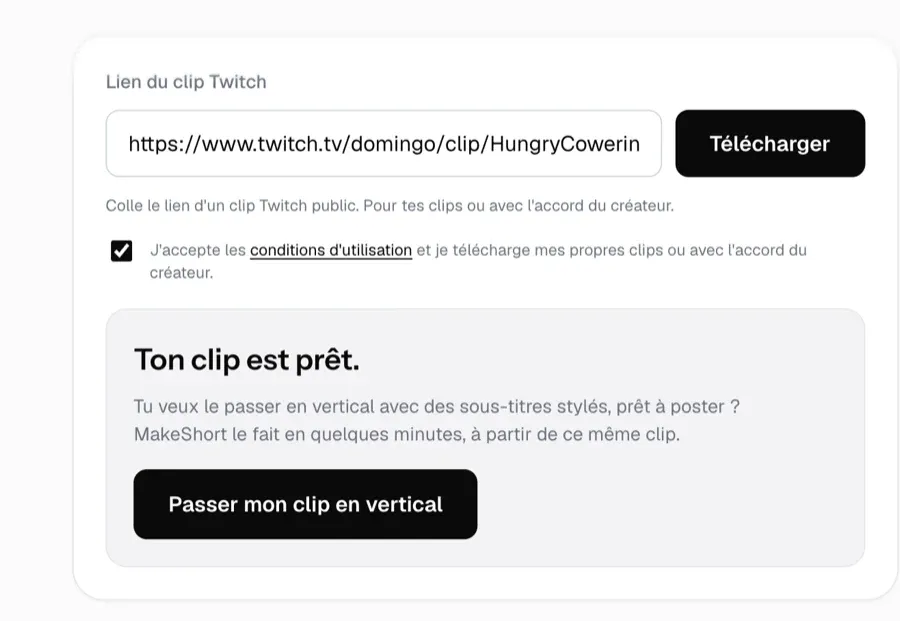
Save the MP4
The download starts without re‑encoding. Keep the file or upload it to your editor.
Turn your saved Twitch moment into a Short
Upload the MP4 to MakeShort, keep the action in frame and add captions you can review.
Make the moment yours
Upload the MP4 to MakeShort for vertical framing, captions and channel styling. Try the editor for free. Need a Kick clip? Use the Kick clip downloader.
Frequently asked questions
Can't find the answer to your question?
Contact us by clicking here.
- Use a clips.twitch.tv URL or a twitch.tv URL containing /clip/. Copy it from the player’s Share menu to avoid an incomplete link.
- The downloader selects the best version Twitch provides, up to 1080p when available. It does not re‑encode the file or add a watermark.
- Private, subscriber‑only and deleted clips are unavailable through a public link. Check the clip’s visibility on Twitch.
- A file already saved stays on your device, but the Twitch link may stop working. Save only your clips or clips you have permission to keep.
- Yes. Upload the MP4 to MakeShort for vertical framing, captions and an export for Shorts, Reels or TikTok.